
DeepFocus Time is a browser extension designed to help you stay focused and work with intention. At its core, it uses structured Focus and Break timers to guide you through deep work sessions while ensuring you take regular breaks to maintain mental clarity.
Beyond the timer, DeepFocus Time includes a range of features designed to reduce distractions, support sustained concentration, and help you build consistent focus habits while working or studying.
This guide will walk you through how DeepFocus Time works and how to use its features to create a more productive and distraction-free workflow.
1Pin DeepFocus Time to the Chrome Toolbar
To access DeepFocus Time quickly while working, you should pin the extension to your Chrome toolbar.
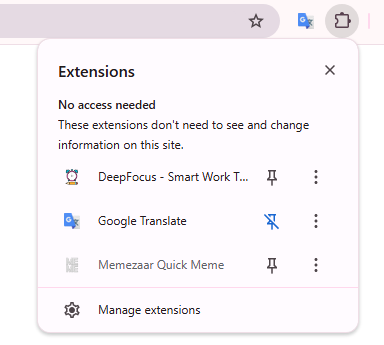
Click the Extensions icon in the top-right corner of Chrome.
-
Find DeepFocus Time in the extensions list.
-
Click the Pin icon next to the extension.
-
The DeepFocus Time icon will now appear in your Chrome toolbar for quick access.
Once pinned, you can open DeepFocus Time instantly whenever you want to start a Focus session or manage your settings.
2Start Your First Focus Session
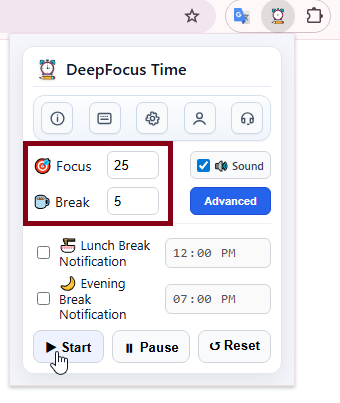
To begin your first focus session with DeepFocus Time, set the Focus and Break durations based on your work or study goals.
Steps:
-
Open DeepFocus Time from the Chrome toolbar.
-
Set your desired Focus time and Break time.
-
Click Start to begin the session.
Once started, a floating timer box will appear on your screen to track the session in real time. By default, the timer is placed in the top-right corner of your screen, allowing you to monitor your progress without interrupting your workflow.
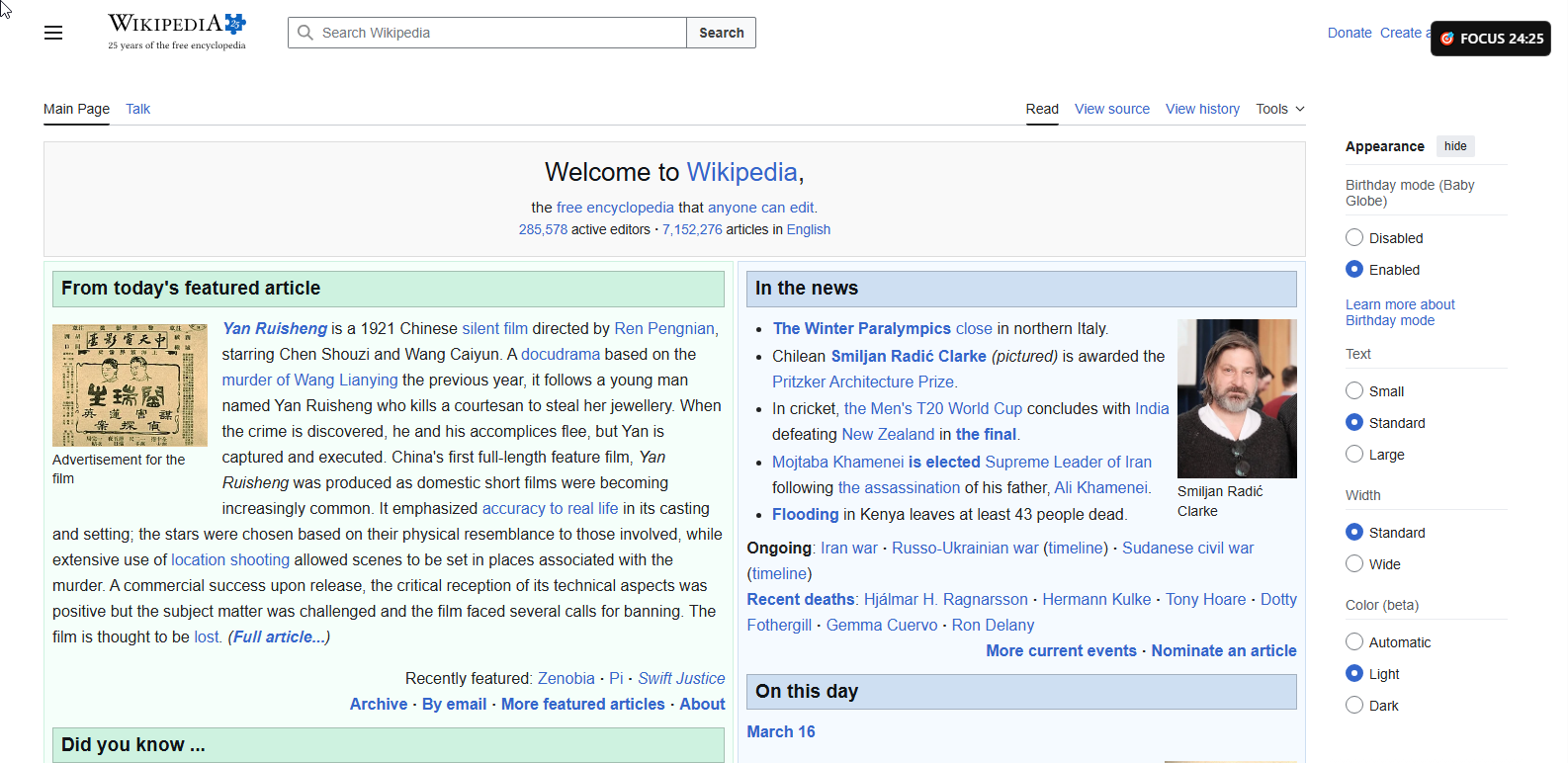
The timer will automatically switch between Focus and Break periods based on the durations you set.
3Move the Timer
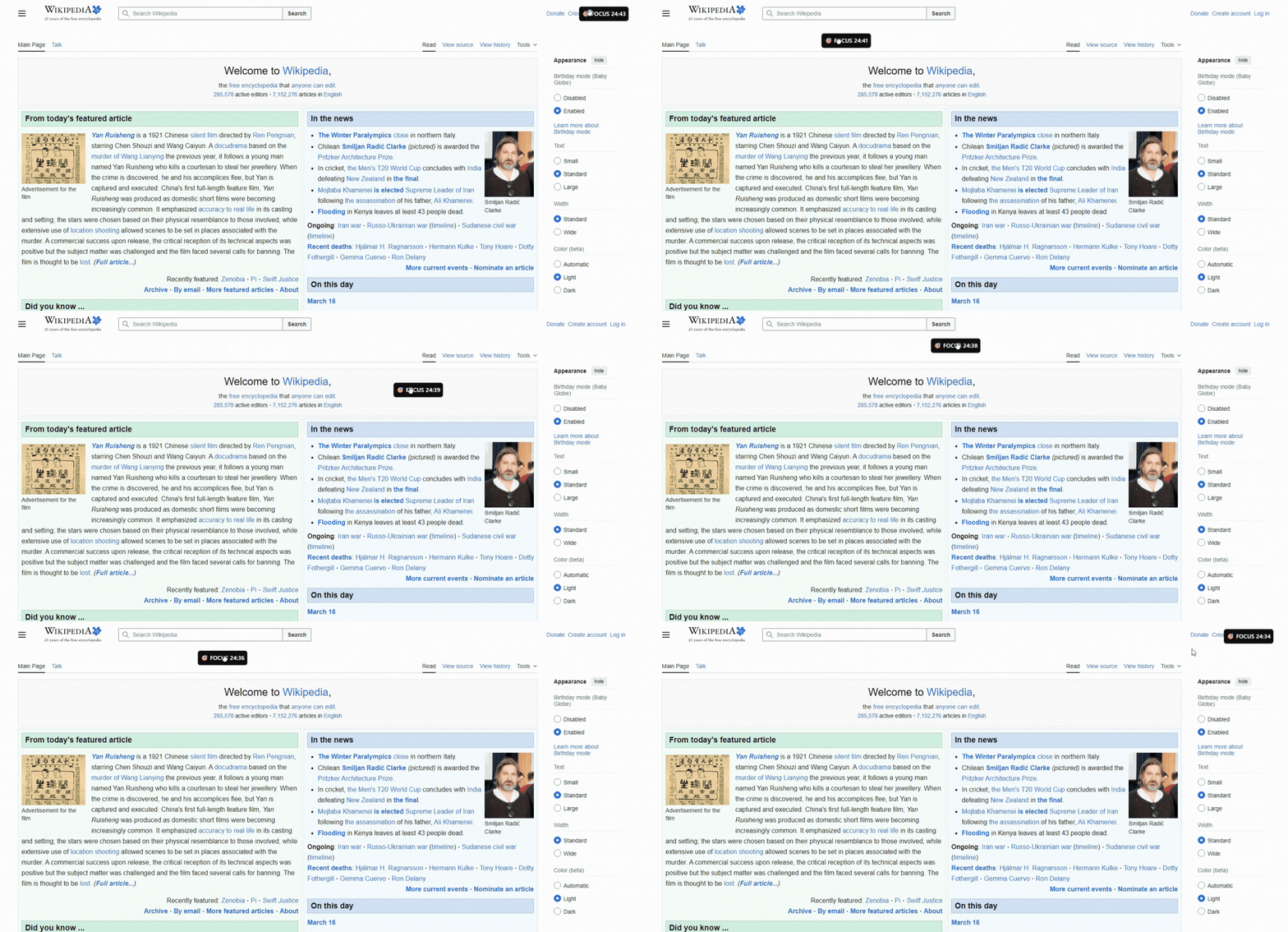
You can easily reposition the timer to any location on the page.
Simply click and drag the timer box to move it to a more convenient spot on your screen.
This allows you to keep the timer visible without interfering with your workflow.
4Automatic Timer Color Adjustment for Website Themes
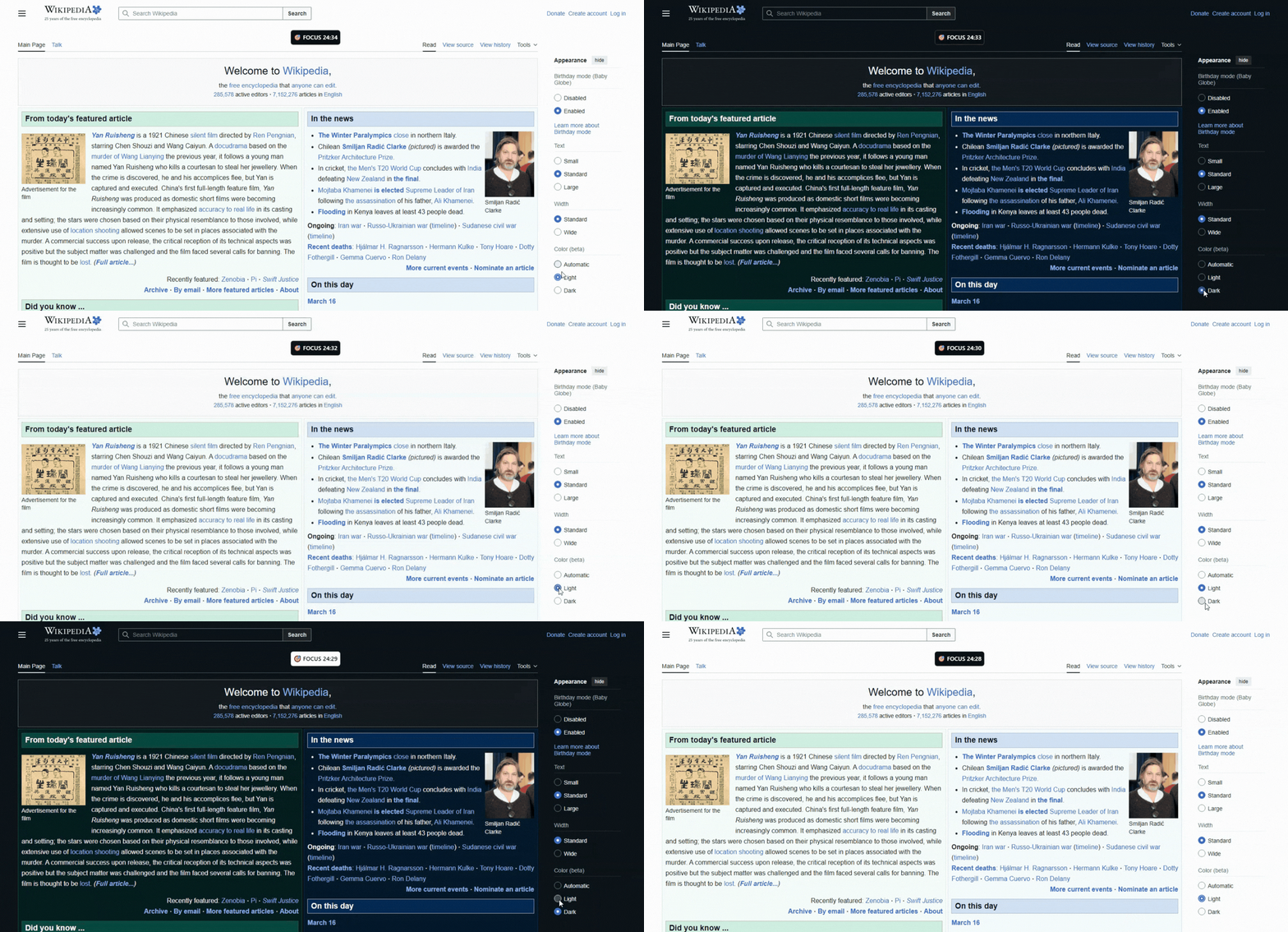
When you're on a light-themed page, the timer appears with a darker background. When you're on a dark-mode website, the timer switches to a lighter style to maintain strong contrast.
This automatic adjustment ensures the timer is always easy to see without disrupting your workflow.
5Lunch & Evening Break Notifications
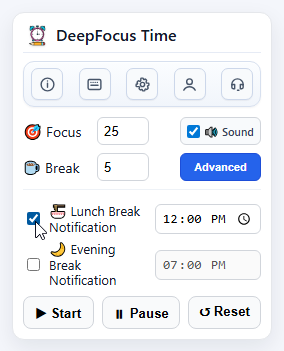
DeepFocus Time allows you to set reminders for your Lunch Break and Evening Break to help maintain a healthy work routine.
You can enable either notification or both, and choose the time that best fits your schedule.
How It Works:
-
Check Lunch Break Notification, Evening Break Notification, or both.
-
Set your preferred reminder time.
-
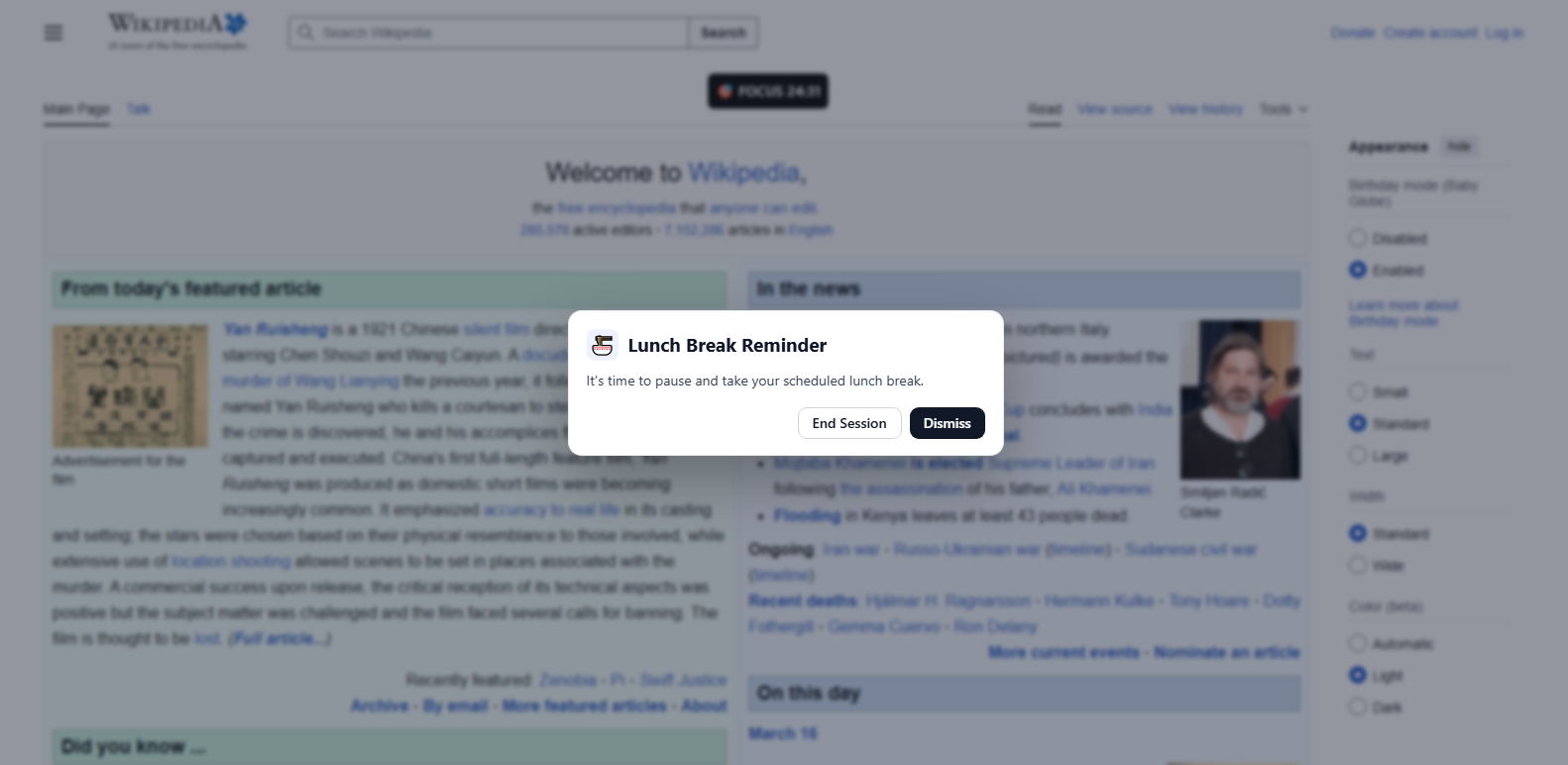
When the scheduled time arrives, a notification will appear in the center of the screen reminding you to take a break.
These reminders help ensure you step away from work at important times during the day.
Important
This feature only works while a focus session is running.
If no session is active, the break notifications will not be triggered.
6Pause and Resume Sessions
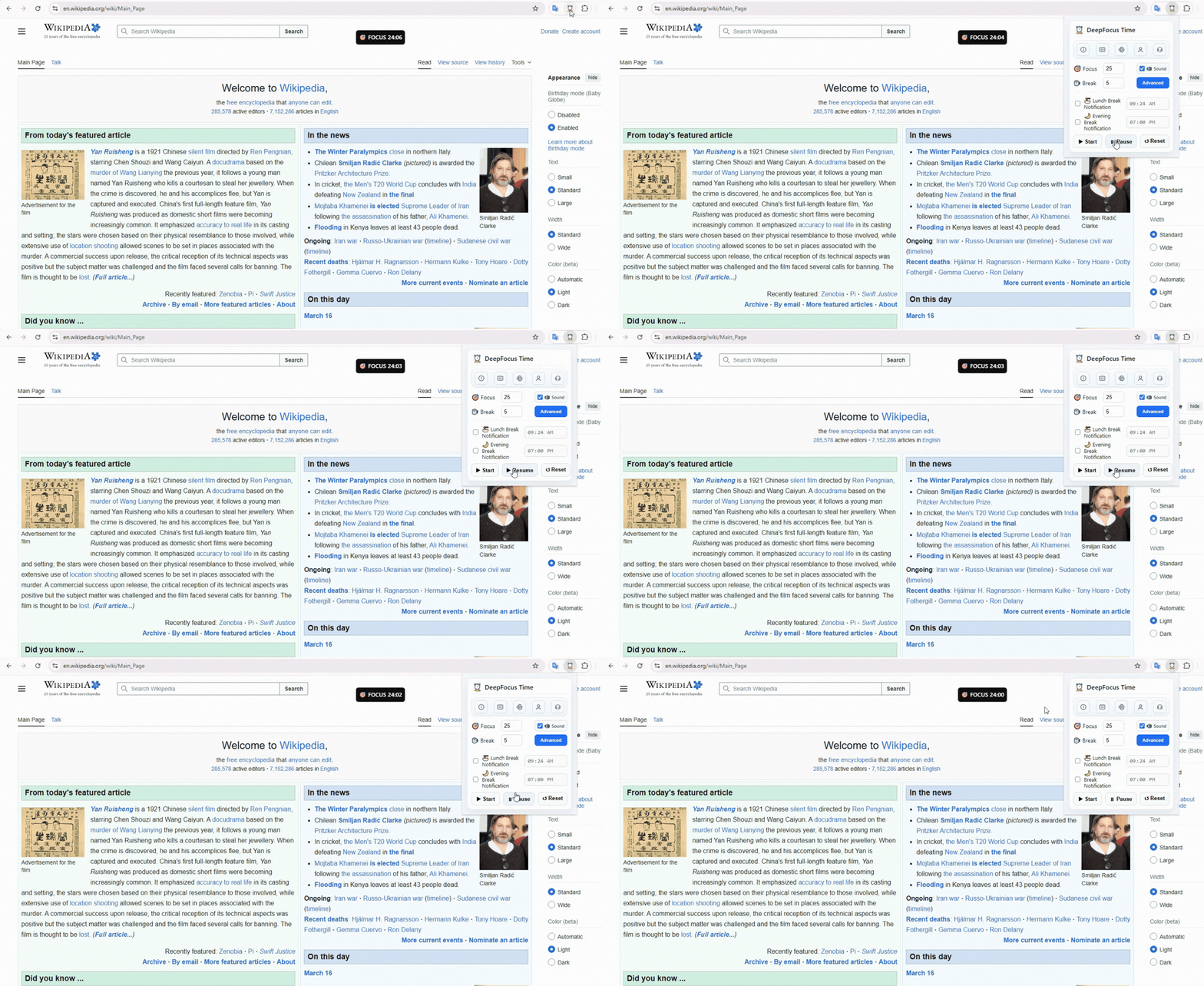
DeepFocus Time allows you to temporarily pause an active session whenever you need to step away.
How It Works:
-
Click Pause to temporarily stop the timer.
-
The countdown will stop and your session will be preserved.
-
Click Resume to continue the session from where it left off.
This feature is useful when you are briefly interrupted but want to continue your focus session without restarting the timer.
7Reset a Session
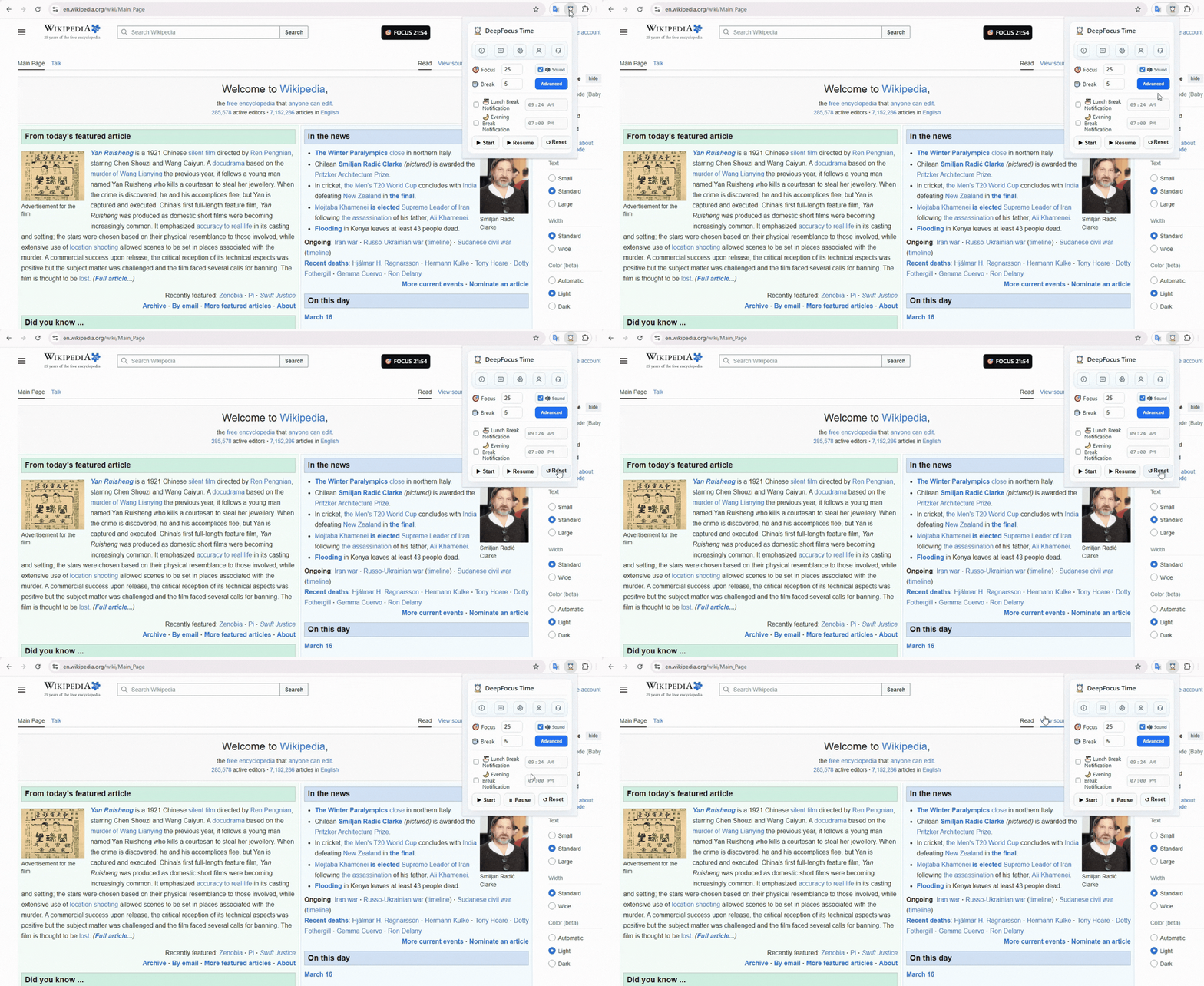
DeepFocus Time allows you to quickly restart your timer if you want to begin a new session.
Click Reset to stop the current session and clear the active timer. The system will return to its default state, allowing you to start a fresh Focus session.
This is useful when you want to restart your workflow or adjust your session settings before beginning again.
8Keyboard Shortcuts
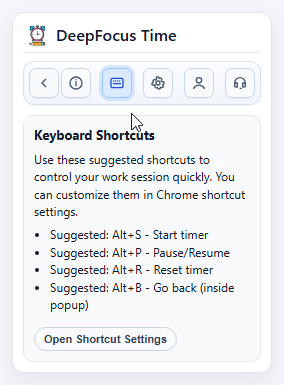
DeepFocus Time allows you to assign keyboard shortcuts to quickly control the extension while working.
To configure shortcuts, open the Keyboard Shortcuts section and click Open Shortcut Settings. This will take you to Chrome's shortcut settings page where you can assign your preferred key combinations.
Steps:
-
Open the Keyboard Shortcuts tab in the extension.
-
Click Open Shortcut Settings.
-
Set your preferred shortcut keys for the available actions.
Suggested shortcuts are displayed in the panel to help you quickly set up commonly used commands.
These shortcuts allow you to start, pause, or reset sessions instantly without opening the extension popup.
9Night Work Mode
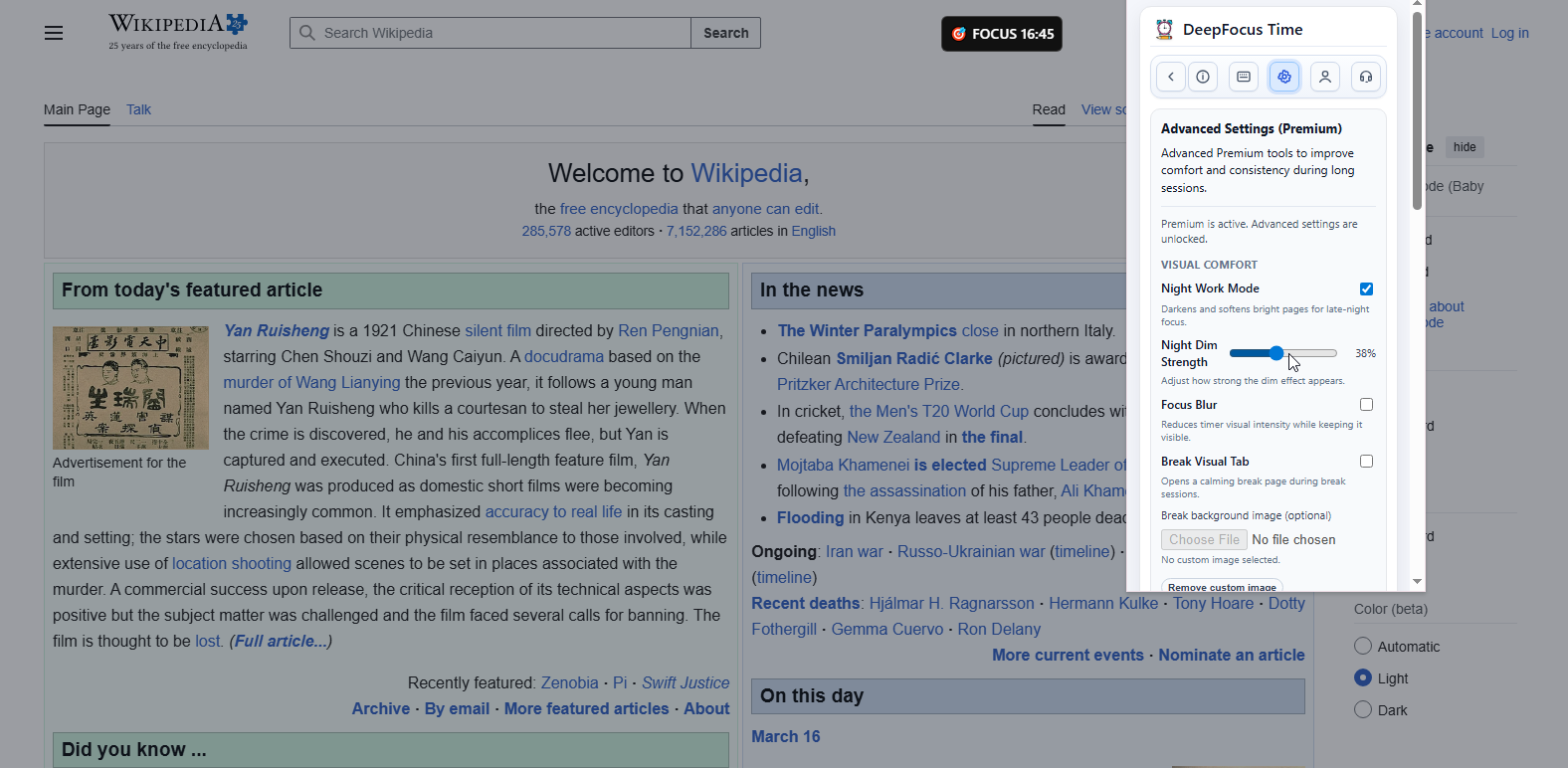
Night Work Mode reduces screen brightness to create a more comfortable environment for working at night or during long focus sessions. This helps reduce eye strain and makes it easier to stay focused for extended periods.
You can also adjust the dimming intensity using the Night Dim Strength slider to match your comfort level.
How to Enable Night Work Mode:
-
Open Advanced Settings (Premium).
-
Enable Night Work Mode.
-
Adjust the brightness level using the Night Dim Strength slider.
Once enabled, the page will be gently dimmed while your focus session is active, helping protect your eyes during late-night work or study sessions.
10Focus Blur
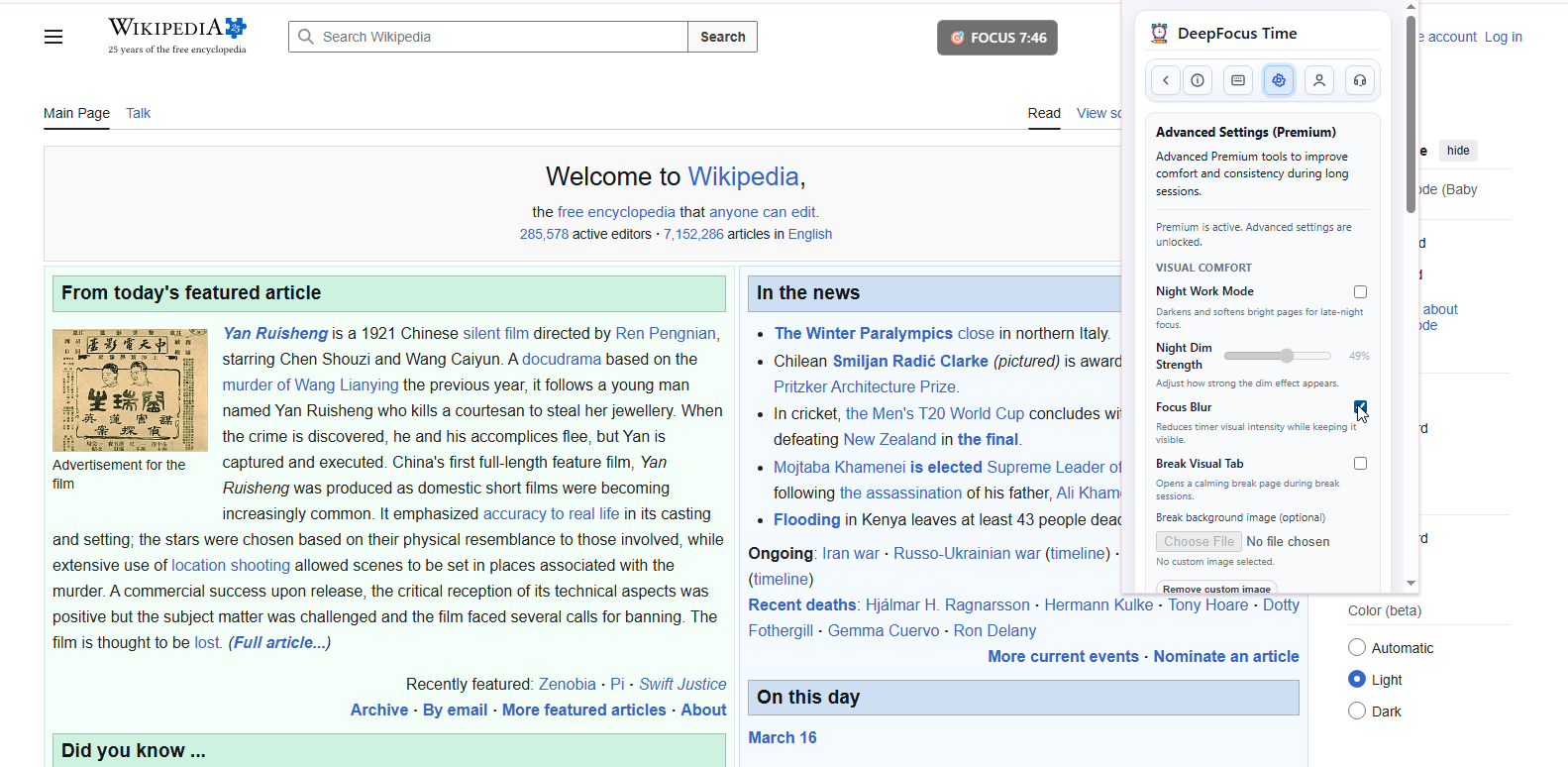
Focus Blur reduces the visual prominence of the floating timer by applying a subtle blur effect. This helps prevent the timer from becoming a distraction while still allowing you to monitor your session.
The timer remains visible, but its visual intensity is softened so you can stay focused on your work instead of frequently checking the countdown.
How to Enable Focus Blur:
-
Open Advanced Settings (Premium).
-
Enable Focus Blur.
Once enabled, the floating timer will appear slightly blurred during focus sessions, helping create a cleaner and less distracting workspace.
11Break Visual Tab
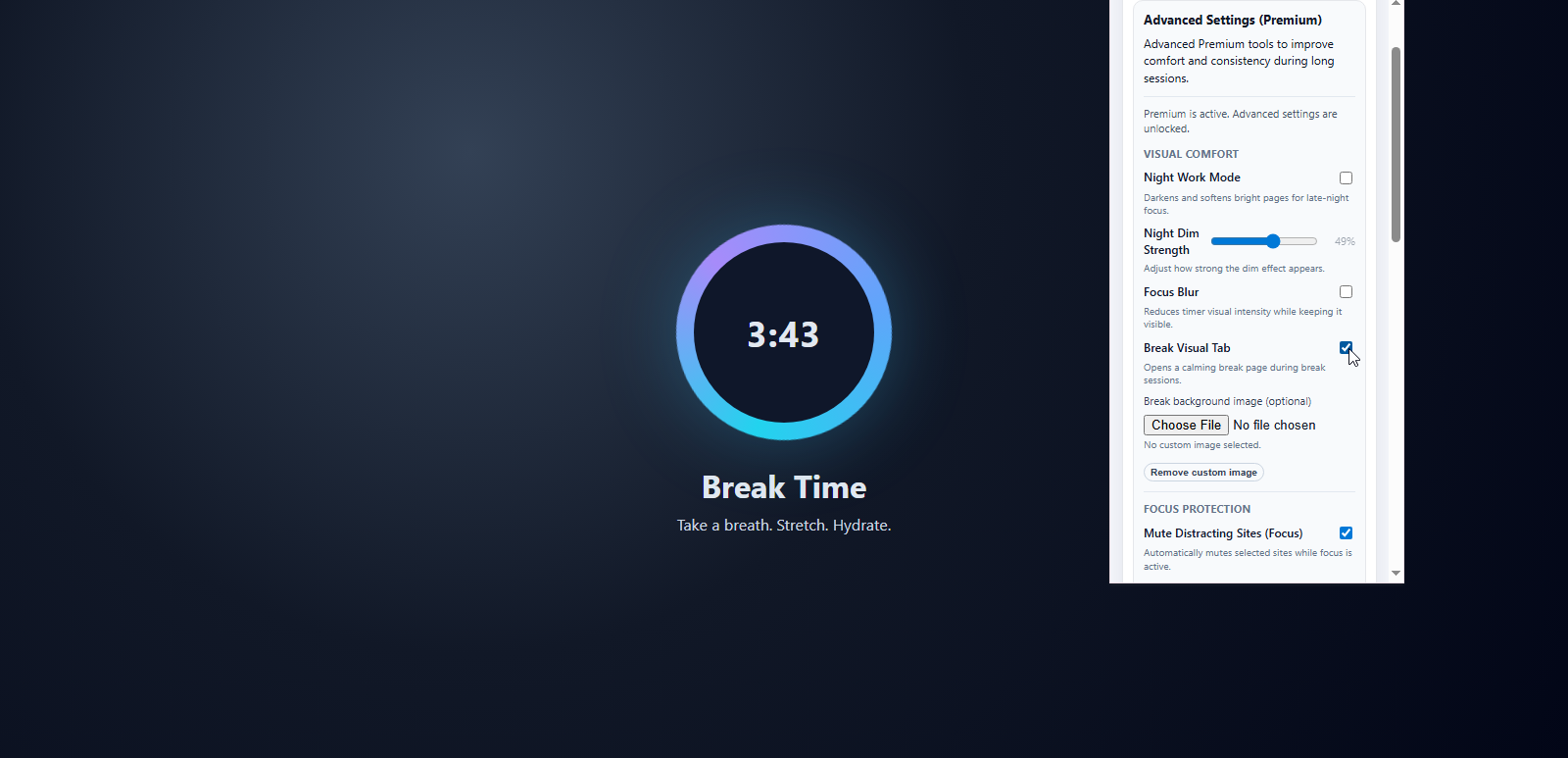
Break Visual Tab opens a dedicated break page whenever a Break session begins. This visual space helps you step away from work and relax while the break timer continues counting down.
The page displays a calming interface with a countdown timer, encouraging you to take a proper break before your next focus session.
How to Enable Break Visual Tab:
-
Open Advanced Settings (Premium).
-
Enable Break Visual Tab.
Customize the Break Background
You can personalize the break experience by setting your own background image:
-
Click Choose File under Break background image (optional).
-
Select an image from your device.
Your selected image will be used as the background for the Break Visual Tab, creating a more relaxing and personalized break environment.
12Mute Distracting Sites
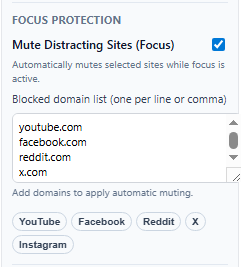
Mute Distracting Sites automatically silences selected websites while a Focus session is active. This helps prevent audio distractions from platforms such as social media or video sites.
By muting these sites, you can stay focused without unexpected sounds interrupting your workflow.
How to Enable:
-
Open Advanced Settings (Premium).
-
Enable Mute Distracting Sites (Focus).
Manage the Blocked Domain List
You can customize which websites are muted during focus sessions by adding them to the Blocked domain list:
-
Add one domain per line or separate them with commas.
-
The extension will automatically mute audio from those websites while focus mode is active.
Default Blocked Sites
By default, DeepFocus Time includes several commonly distracting websites:
-
youtube.com
-
facebook.com
-
reddit.com
-
x.com
-
instagram.com
-
tiktok.com
You can edit or remove these domains at any time to match your personal workflow.
13Idle Auto-Pause
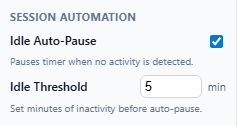
Idle Auto-Pause automatically pauses the timer when no activity is detected in the browser. This ensures that your focus session only counts actual working time.
When you return and resume activity, the timer will automatically continue from where it paused.
How to Enable Idle Auto-Pause:
-
Open Advanced Settings (Premium).
-
In the Session Automation section, enable Idle Auto-Pause.
Set the Idle Threshold
You can control how long the system waits before pausing the timer:
-
Enter the number of minutes in the Idle Threshold field.
-
If no activity is detected for that amount of time, the timer will pause automatically.
This helps keep your focus sessions accurate by preventing idle time from being counted.
14Productivity Analytics
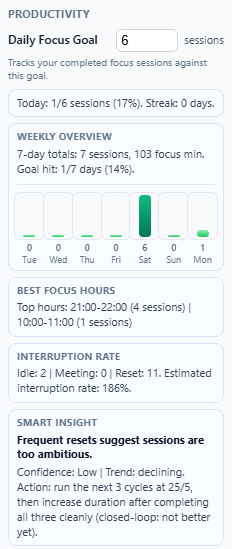
The Productivity section provides analytics that help you understand your focus habits and track your productivity over time.
These analytics are automatically available for Premium users and can be viewed in Advanced Settings (Premium).
Daily Focus Goal
The Daily Focus Goal allows you to set a target number of focus sessions to complete each day.
Enter the desired number of sessions in the Daily Focus Goal field. The system will then track your progress automatically.
Below the goal setting, you will see a progress summary such as:
Today: 1/6 sessions (17%). Streak: 0 days.
This shows how many sessions you have completed today and how many consecutive days you have met your goal.
Weekly Overview
The Weekly Overview displays a mini chart of your focus activity over the past 7 days.
The chart shows how many focus sessions you completed each day, helping you visualize your productivity patterns throughout the week.
Additional statistics are also displayed, such as:
-
7-day totals: total sessions and total focus minutes
-
Goal hit: percentage of your daily goals achieved during the week
This helps you quickly understand how consistent your focus sessions have been.
Best Focus Hours
Best Focus Hours identifies the times of day when you are most productive based on your completed sessions.
Example:
Top hours: 21:00'22:00 (4 sessions) | 10:00?11:00 (1 session)
This insight helps you discover when your concentration tends to be strongest so you can plan important work during those hours.
Interruption Rate
The Interruption Rate tracks events that interrupt your focus sessions.
It includes metrics such as:
-
Idle ' sessions paused due to inactivity
-
Meeting ' sessions paused for meetings
-
Reset ' sessions manually reset
Example:
Idle: 2 | Meeting: 0 | Reset: 11
Estimated interruption rate: 186%
This metric helps you identify how often your focus sessions are disrupted.
Smart Insight
Smart Insight analyzes your focus data and provides personalized recommendations to help improve your productivity.
For example, it may detect patterns such as frequent session resets or declining focus trends and suggest practical adjustments to your workflow.
Example insight:
Frequent resets suggest sessions are too ambitious.
The system may then recommend adjusting your focus cycle or completing several shorter sessions to build better consistency.
15Meeting Auto-Pause
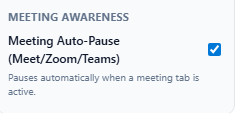
Meeting Auto-Pause automatically pauses your focus session when the system detects an active meeting tab such as Google Meet, Zoom, or Microsoft Teams.
This prevents meeting time from being counted as focus time, helping keep your productivity statistics accurate.
How to Enable:
-
Open Advanced Settings (Premium).
-
In the Meeting Awareness section, enable Meeting Auto-Pause (Meet/Zoom/Teams).
When a supported meeting tab is detected, the timer will pause automatically. Once the meeting ends and normal activity resumes, your focus session can continue.
16Account Sign-In
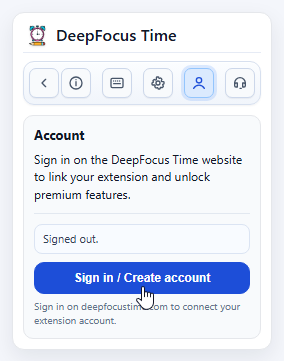
You can connect your extension to a DeepFocus Time account to unlock premium features and synchronize your settings.
How to Sign In:
Open the Account tab in the extension.
Click Sign in / Create account.
The extension will open the official website:
https://deepfocustime.com/Sign in or create a new account on the website.
Once completed, your account will automatically sync with the extension, connecting your browser extension to your DeepFocus Time account.